Most L&D teams know their courses need more video. Few have a camera crew, a studio, or the weeks it takes to schedule both.
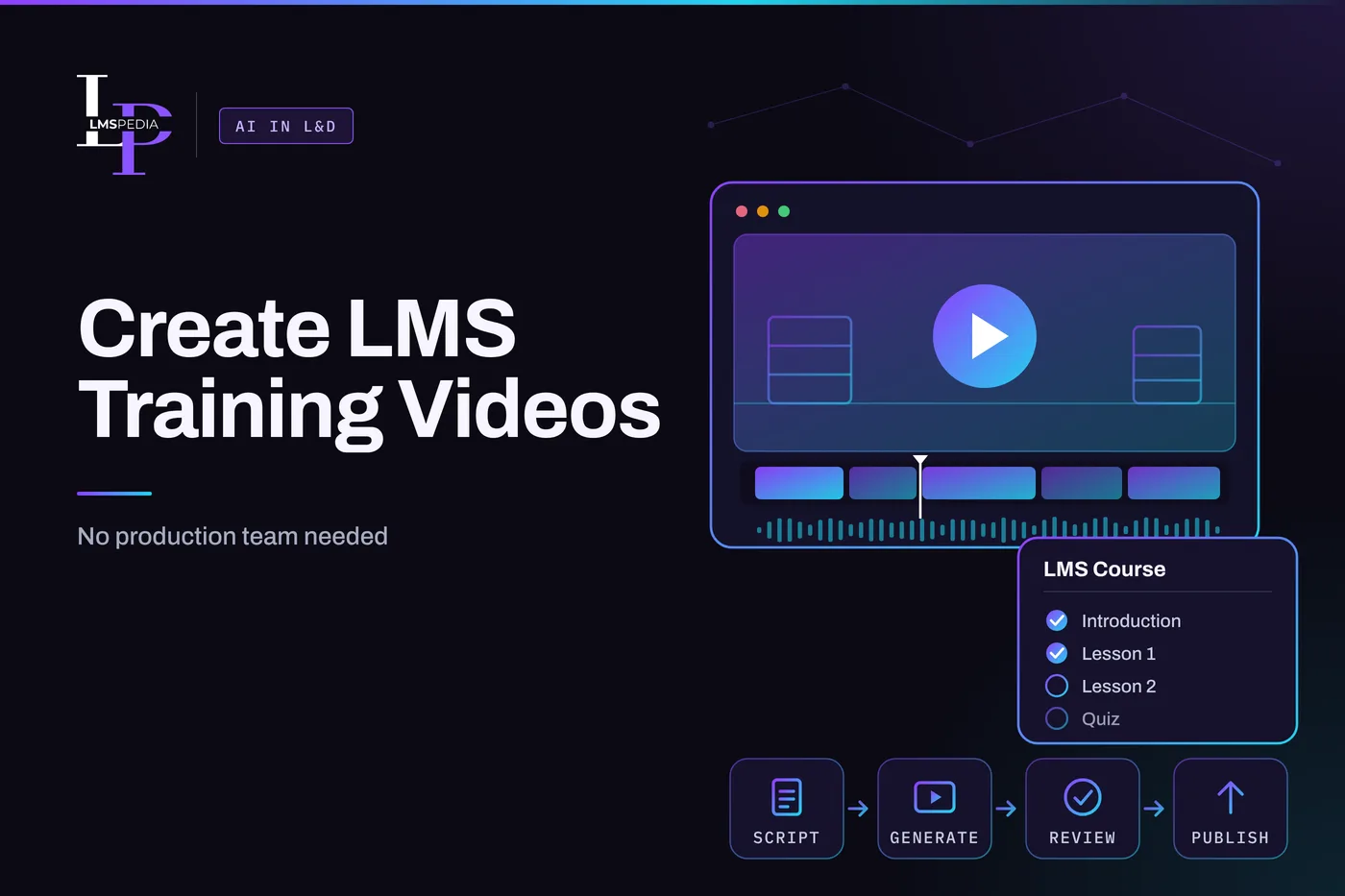
A small team can now plan, generate, review, and publish training video in a repeatable workflow. This guide walks through that workflow, from the first learning objective to the completion report inside your LMS.
Quick answer: write one learning objective and a short script, generate scenes with an AI video generator, add approved narration and captions, assemble the clips in an editor, export an MP4, and publish it in your LMS with a checkpoint question. Have a subject matter expert review every scene before it goes live.
What Is an AI Video Generator and Where Does It Fit in L&D?
An AI video generator creates short video clips from a written description, a reference image, or both. For training, that means you can produce scenes such as a warehouse walkthrough, a customer conversation, or a safety situation without booking actors or a location.
Higgsfield now gives teams an AI Video Generator that turns a scene description or a reference image into a short clip. Higgsfield also offers several video models in one account, so you can pick the model that suits each scene.
An AI video generator is a scene maker, not a training platform. It does not write your learning objectives, package SCORM files, or track completion. Your LMS and authoring tools still do that work.
The workflow below shows where each tool fits.
Why Are L&D Teams Moving Away From Filmed Training Video?
Filmed video works, but it ties every update to a shoot. These are the common friction points:
- Scheduling: crew, location, and subject matter experts all need the same day
- Updates: a changed process means reshooting a scene or living with outdated content
- Cost control: budgets are hard to forecast when scope shifts mid project
- Volume: a library of fifty short lessons is a different job from one flagship video
- Consistency: shoots on different days produce uneven looks
An AI video generator takes the shoot out of the loop for many lesson types. You edit a prompt, regenerate the scene, and swap the clip. That makes small, frequent updates realistic for a team of one or two.
What Types of Training Videos Can You Make Without a Crew?
Not every video type suits generated scenes. This table shows where an AI video generator helps and what should stay in human hands:
| Video type | Best for | Where an AI video generator helps | What stays human |
|---|---|---|---|
| Onboarding welcome | New hire orientation | Opening scenes and site visuals | A real message from a leader |
| Process walkthrough | Standard procedures | Scene setting and step visuals | Exact step wording and screen recordings |
| Scenario clip | Customer service, sales, soft skills | The situation the learner reacts to | Branching logic and feedback |
| Safety reminder | Site rules and equipment | Illustrative hazard scenes | Approved safety wording |
| Product update | Feature or policy changes | Concept visuals and B roll | Accurate product details |
| Compliance refresher | Annual reminders | Short context scenes | Legal wording and sign off |
In Higgsfield, most of these scenes start from a plain text description, which keeps the first draft quick. Software training is the main exception. Record the screen directly for those lessons and use generated scenes only for context.
How Do You Create a Training Video Step by Step?
Follow this sequence for each video:
- Define one learning objective. State what the learner should be able to do after watching, in one sentence.
- Write a short script. Keep to one idea per video and write for the ear, with short sentences.
- Break the script into scenes. A storyboard of six to ten scenes is enough for a short lesson.
- Generate the scenes. Use your AI video generator, such as Higgsfield, to create each clip from a prompt, with a reference image where you need a specific look.
- Add narration. Record a human voice or use an approved voice tool so the wording matches your script exactly.
- Add captions and on screen text. Create these in your editor, not inside the generated video.
- Assemble and review. Join the clips, trim them, and send the draft to a subject matter expert.
- Export and publish. Export an MP4, upload it to your LMS, and attach a checkpoint question.
How Do You Generate Each Scene in Higgsfield?
Step four is where Higgsfield fits. The workflow looks like this:
- Describe the scene: location, action, camera, and lighting
- Add a reference image when you need a specific look or setting
- Choose a model: Higgsfield lets you switch between several video models in one workspace
- Set first and last frame references when a clip must start and end in a particular state
- Generate, review, and regenerate until the scene matches the script
If a scene needs a small change later, such as a different object on a desk, Higgsfield also lets you upload existing footage and edit it instead of starting over. That helps when a procedure changes and only one detail needs updating.
Clip length depends on the model and settings you choose. Check the current limits before you storyboard, and plan lessons as a sequence of short clips.
How Do You Write Prompts That Produce Usable Training Scenes?
A good prompt reads like a shot list. Higgsfield accepts a reference image alongside the prompt, so you can show a setting instead of describing it. Cover these elements for every scene:
| Prompt element | What to specify | Example |
|---|---|---|
| Setting | Where the scene happens | A tidy warehouse aisle with labelled shelves |
| Subject | Who or what is on screen | A worker in a high visibility vest checking a pallet label |
| Action | What happens | The worker scans the label and nods |
| Camera | Framing and movement | Medium shot, steady camera |
| Lighting and mood | Visual tone | Bright, neutral, realistic |
| Constraints | What to avoid | No brand logos and no readable text |
Four habits make prompts easier to reuse:
- Keep one action per clip, so each scene is easy to trim and replace
- Describe what the camera sees instead of what the learner should feel
- Avoid naming real people or asking for a real person’s likeness
- Save prompts that work as templates for the next lesson in the library
How Do You Keep Visuals Consistent Across a Whole Course?
Consistency is what makes a course look designed rather than assembled. These habits help:
- Create a style frame first: one image that defines the look, setting, and palette
- Reuse the same reference image for every scene set in the same location
- Reuse the same descriptive wording for recurring settings and roles
- Stay on one model within a module unless you have a clear reason to switch, and test the same prompt on a second model if one scene looks off
- Lock first and last frames when two clips must connect
Higgsfield supports reference images and first and last frame references, which makes the last two habits practical inside one workspace. Keep a short style sheet with your approved prompts and reference images so a colleague can produce a matching scene next quarter.
How Do You Keep AI Training Video Accurate and Compliant?
Generated scenes are illustrative. Treat them like stock footage that you review before use. Run this checklist on every video:
- A subject matter expert signs off on every scene, not only the script
- Equipment, uniforms, and procedures match your real workplace
- All on screen text is typed in your editor, because generated text can contain errors
- No real person’s likeness appears without written consent
- Your organisation’s policy on disclosing AI generated content is followed
- Prompts and approvals are stored for audit purposes
- Higgsfield’s current terms on commercial use of generated clips are checked before you publish
Captions deserve special attention. The W3C’s guidance on captions for prerecorded media explains that WCAG treats captions for prerecorded audio in video as a Level A requirement, with limited exceptions. Add captions to every training video and check that they include important sound cues as well as speech.
How Do You Publish and Track Training Videos in Your LMS?
Publishing is the same as for any other media. Work through these points:
- Export the clips from Higgsfield, join them in your editor, export an MP4, and check your LMS for supported formats and file size limits
- Upload the file directly, or wrap it in a SCORM or xAPI package with your authoring tool
- Attach the caption file so learners can switch captions on
- Add a checkpoint question after the video to confirm the learning objective
- Set a clear completion rule, such as finishing the video and passing the question
Then measure what happened. Use your LMS reporting to compare results before and after each video:
| Metric | What it tells you | What to do next |
|---|---|---|
| Completion rate | Whether learners finish the video | Shorten or split videos with low completion |
| Checkpoint score | Whether the objective was met | Rework scenes tied to missed questions |
| Drop off point | Where attention fades | Tighten the script near that moment |
| Repeat views | Which steps confuse learners | Add a clearer scene or a job aid |
Because an AI video generator makes a scene cheap to regenerate, you can fix a weak moment and republish within the same week.
When Is Filmed Video Still the Better Choice?
Generated video is a strong default for illustrative scenes. Filmed video earns its cost in these cases:
- A leader needs to speak directly to employees
- A demonstration depends on your exact equipment
- Regulations require footage of the real procedure
- Real employee testimonials carry the lesson
- Software steps are best shown with a screen recording
Many teams use a hybrid. They film the few moments that must be real and generate the surrounding scenes with Higgsfield. That keeps the budget focused on what only a camera can capture.
What Does a Realistic Week Look Like for a Small L&D Team?
One short video per week is a reasonable starting rhythm:
| Day | Task | Owner |
|---|---|---|
| Monday | Set the objective, write the script, review it with the expert | L&D lead |
| Tuesday | Storyboard, create the style frame, draft prompts | L&D lead |
| Wednesday | Generate scenes in Higgsfield and pick the best takes | L&D lead |
| Thursday | Add narration and captions, assemble the Higgsfield clips into one edit | L&D lead or editor |
| Friday | Expert review, fixes, publish to the LMS | L&D lead and expert |
After a few cycles, the prompt templates and style sheet cut the time for each new video, and the AI video generator becomes a routine step instead of an experiment.
What Is the Best Way to Start?
Start with one lesson. Write the objective, generate a handful of scenes with an AI video generator such as Higgsfield, add narration and captions, and publish it with a checkpoint question.
Review the numbers after a week, fix what the data points to, and then repeat the workflow. A small team that follows a clear process can build a steady library without a production crew.
FAQ
Frequently Asked Questions About Creating Training Videos With AI
Q1. Can an AI video generator replace a video production team?
For many illustrative scenes, yes. Higgsfield handles the scene creation, while your editor, voice, and LMS handle the rest. For leader messages, real equipment demos, and regulated footage, a camera is still the right tool. A hybrid approach covers both.
Q2. How long should a training video be?
Keep each video focused on a single learning objective. If a script covers more than one idea, split it into separate videos.
Q3. Do I need video editing skills?
You need basic editing to join clips, add captions, and sync narration. Many editors and authoring tools handle that without advanced skills.
Q4. How do I handle narration?
Record a human voice or use an approved voice tool, then sync it to the clips in your editor. Narration should match the approved script word for word, especially for compliance content.
Q5. Will the video work in any LMS?
Many platforms accept MP4 files, but formats, file size limits, and SCORM or xAPI handling vary. Check your LMS documentation before you upload.