
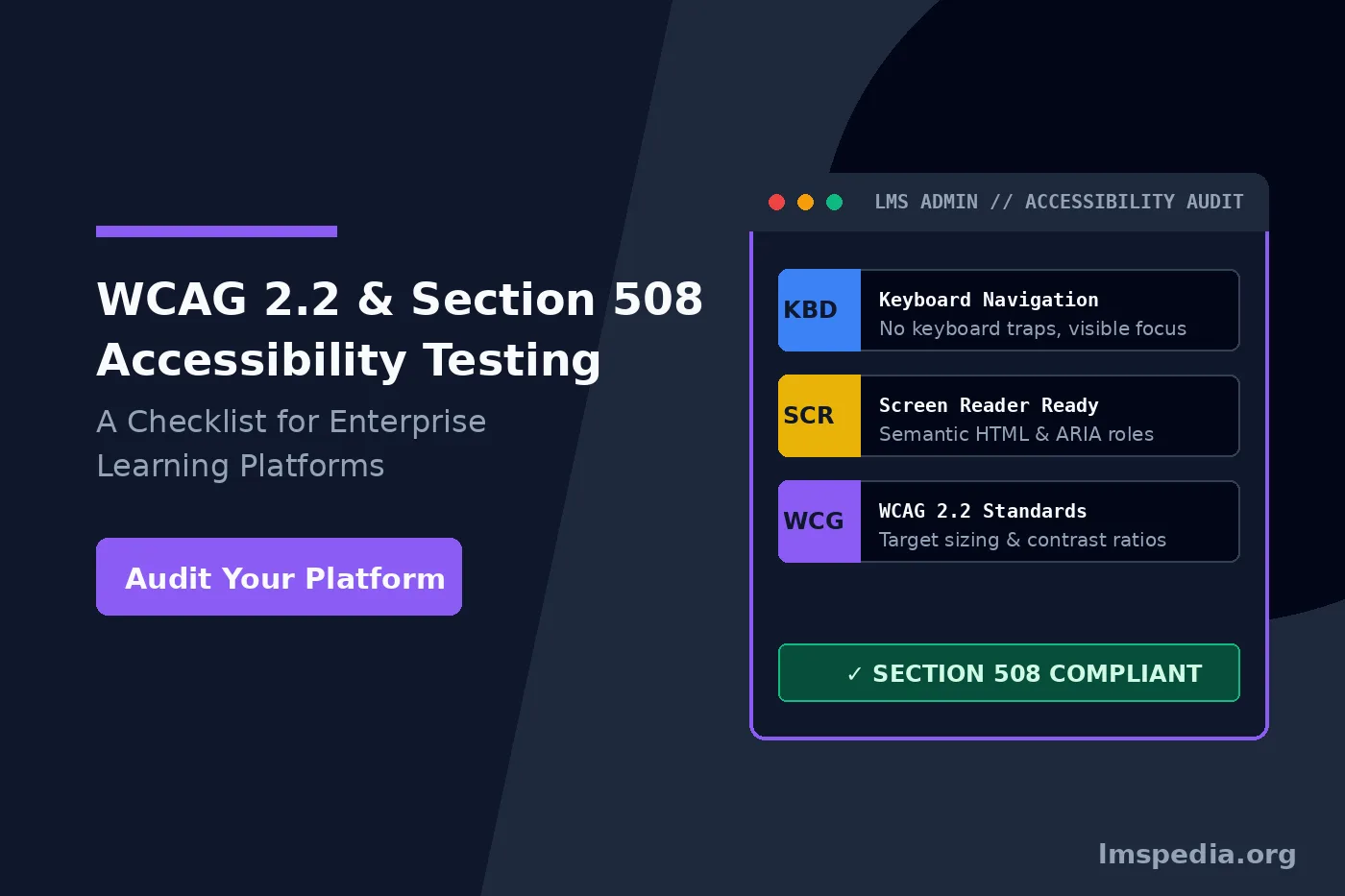
Accessibility for Learning Platforms: Section 508 and WCAG 2.2 Standards
Corporate learning platforms must include every single employee globally. Specifically, excluding users with disabilities violates core human rights. Furthermore, digital exclusion invites massive corporate legal liability. Many organizations mistakenly treat digital accessibility as an afterthought. Consequently, they buy software platforms and ignore digital barriers. A visually impaired employee cannot read inaccessible PDFs. Additionally, a deaf user cannot learn from uncaptioned videos. Therefore, this digital exclusion destroys enterprise compliance initiatives completely. It isolates highly valuable talent from career advancement opportunities. Ultimately, modern enterprises must audit their learning software actively. They must demand strict adherence to federal accessibility standards. Mastering wcag 2.2 elearning standards protects your entire organization completely.
Historically, organizations relied completely on basic vendor accessibility claims. However, informal promises provide zero verifiable proof of actual operational safety. Modern procurement environments require documented verification from accredited third-party auditing bodies. Therefore, procurement officers must understand how to decipher complex accessibility reports accurately. Specifically, evaluating software controls prevents unvetted tools from entering your corporate tech stack. Additionally, exploring core training management system features establishes essential architectural baselines. Next, we will break down federal compliance frameworks. Ultimately, rigorous technical verification safeguards your entire digital learning ecosystem.
Key Takeaways

Automated Scanners Are Not Enough:
While automated tools are great for catching basic color contrast issues or missing alt text, manual testing by human users is critical to catch contextual usability barriers and hidden keyboard traps that algorithms miss
Understanding Federal and Global Accessibility Frameworks
Section 508 and WCAG Standards
Two primary legal frameworks govern digital accessibility today. First, the federal government rigorously enforces Section 508 universally. The World Wide Web Consortium publishes separate technical guidelines. Specifically, they publish the Web Content Accessibility Guidelines globally. Currently, WCAG 2.2 represents the newest international technical standard. Therefore, you must test your software against these specific rules. Relying purely on basic vendor promises remains incredibly dangerous. Vendors often claim full compliance but deliver broken software. Consequently, you must build an internal testing protocol immediately. Ultimately, robust testing guarantees a truly inclusive digital learning environment.
Legal Compliance Versus Technical Rules
Organizations frequently confuse legal accessibility laws with technical standards. Specifically, Section 508 operates as a strict federal law. It legally requires federal agencies to buy accessible technology. Furthermore, this critical law explicitly covers software and training materials. Many state governments and private contractors adopt these rules voluntarily. You can review specific policies on the official Section 508 government portal today. Alternatively, technical metrics define exactly how to achieve legal compliance. The standard uses three distinct conformance levels for testing. Most legal frameworks strictly require Level AA compliance. Therefore, your section 508 lms compliance strategy must target Level AA. You can read exact technical requirements in the official W3C WCAG 2.2 specification documentation. Furthermore, verifying compliance documentation through resources like our guide on LMS for compliance training and audit evidence ensures complete institutional readiness.
WCAG 2.2 Specific Additions and Changes
Target Size and Motor Accessibility
WCAG 2.2 introduces several highly critical success criteria. Specifically, these new rules address modern mobile web interactions thoroughly. Consider the newly implemented Target Size rule. Mobile learning frequently requires tapping small screen elements constantly. Buttons sometimes appear incredibly small or placed closely together. Consequently, users with motor tremors accidentally click the wrong item. WCAG 2.2 strictly mandates minimum target sizes for clickable elements. Therefore, your mobile application must pass this specific test perfectly. Furthermore, understanding these rules supports robust digital learning frameworks natively.
Drag Alternatives and Redundant Entry
Another new mandatory rule covers complex dragging movements. Many interactive courses utilize drag and drop quizzes heavily. A user drags a vocabulary word into a matching box. However, dragging a mouse requires incredibly precise motor control. Users with limited dexterity cannot perform this physical action. Consequently, WCAG 2.2 legally requires a simple click alternative universally. The user must simply tap the word and tap the box. Furthermore, the Redundant Entry rule reduces severe cognitive strain. An LMS might ask a user for identical information twice. WCAG 2.2 dictates that systems auto-populate previously entered information perfectly.
Request VPAT Documentation
Always request a Voluntary Product Accessibility Template from software vendors. Review this document carefully to verify stated compliance levels before signing contracts.
Platform Accessibility Versus Content Accessibility
Differentiating Software Shells from Course Content
Organizations often confuse platform compliance with content compliance entirely. Specifically, these represent two completely separate testing domains. The software platform represents the core administrative digital shell. It includes the login screen and reporting dashboards. The software vendor controls the platform accessibility directly. Conversely, course content represents the actual uploaded learning material. This includes SCORM packages and customized video files. Your internal instructional designers control the content accessibility. You might purchase the most accessible platform available. However, an untagged PDF creates a massive barrier immediately.
Building Comprehensive Testing Checklists
Your comprehensive accessible course design checklist must cover both domains. When evaluating vendors, ask for their detailed accessibility documentation. Do not accept a compliance template blindly. Many vendors fill these official documents out incorrectly. You must verify their specific claims through rigorous manual testing. If the vendor fails your audit, require a remediation plan. Furthermore, incorporating strict testing aligns with a formal LMS UAT test plan. Ultimately, holding vendors accountable protects your corporate workforce.
Comparing Accessible Learning Platforms
Selecting an accessible platform requires careful vendor evaluation. Some vendors prioritize universal design principles aggressively during development. Others treat accessibility as an afterthought. We evaluate three prominent platforms based on their accessibility features. Consequently, you can make informed procurement decisions. Reviewing the responsive table below clarifies platform readiness.
| Platform | Accessibility Focus | WCAG 2.2 Readiness |
|---|---|---|
| SimpliTrain | Native keyboard navigation and comprehensive high-contrast themes. | Fully supports WCAG 2.2 criteria with automated compliance tracking. |
| Moodle | Strong open source accessibility community and flexible semantic HTML layouts. | Requires specific accessible plugins to meet modern compliance standards. |
| Docebo | Sleek visual design with baseline screen reader support. | Lacks robust native alternatives for complex interactive widgets. |
The Keyboard Navigation Check
Eliminating Hidden Keyboard Traps
Keyboard accessibility forms the foundation of usable software. Many users cannot operate a computer mouse physically. They rely entirely on a standard keyboard to navigate. Your software must support complete keyboard control. You must test every menu and course module thoroughly. Use only the specific Tab and Arrow keys. First, check meticulously for hidden digital keyboard traps. A keyboard trap ruins the user experience. The user tabs into a module but cannot tab out. They remain stuck inside the digital module. You must ensure users can navigate away seamlessly.
Visual Focus Indicators
Second, verify the visual focus indicator completely. Sighted keyboard users must know their exact screen location constantly. WCAG 2.2 introduces strict new rules for focus indicators. The focus outline must remain highly visible continually. It must contrast sharply against the underlying background color. If you press the Tab key and lose visual focus, it fails. Ultimately, flawless keyboard navigation guarantees baseline digital accessibility.
Screen Reader Compatibility and ARIA Roles
Semantic HTML and Structural Tags
Blind and low vision learners utilize screen readers constantly. A screen reader converts digital text into synthesized speech. Popular screen readers include JAWS and NVDA software. Your platform requires rigorous screen reader lms testing. This ensures complete compatibility across diverse assistive technologies. Screen readers cannot understand purely visual information. They rely entirely on the underlying semantic HTML code. Developers must use proper structural tags universally. A visual heading must utilize an actual heading tag. A button must utilize a real semantic button tag.
Utilizing ARIA Roles Correctly
Complex interfaces often require specific technical attributes. Accessible Rich Internet Applications roles provide extra context. They announce when a dropdown menu expands completely. However, poor technical implementation breaks accessibility entirely. Developers should carefully follow authoring guidelines. Furthermore, experts at WebAIM provide excellent tools for testing. Understanding advanced data compliance overlaps with strict training data security and GDPR standards. Ultimately, precise semantic coding guarantees flawless screen reader performance.
Test with Real Users
Always involve native screen reader users in your manual testing process. Automated tools cannot simulate the genuine navigational experience accurately.
Color Contrast and Visual Design
Visual accessibility requires careful intentional color selection. Many learners experience color blindness or low vision. These users cannot read light gray text. WCAG strictly defines acceptable color contrast ratios for digital platforms. Standard text legally requires a contrast ratio of high visibility. Large text requires a minimum ratio specifically. You must manually test every single digital element. Check the exact text color and button backgrounds. Furthermore, never use color as the only navigational cue. Do not simply highlight a required question in red. You must also include a clear text label. Ultimately, high contrast ensures optimal readability for everyone.
Media, Captions, and Audio Descriptions
Modern training relies heavily on multimedia content. Videos present massive barriers for deaf learners. Every single video requires highly accurate closed captions. Auto generated captions provide a functional starting point. However, you must edit them for punctuation accuracy. Poorly punctuated captions confuse disabled learners severely. Audio descriptions help blind learners understand visual videos. A video might demonstrate a complex physical process silently. A blind user misses this vital visual information completely. An audio description track describes these silent physical actions aloud. Furthermore, all audio podcasts require readable text transcripts. Add these strict multimedia requirements to your accessible course design checklist.
Cognitive Accessibility and Time Limits
Predictable Navigation and Time Extensions
WCAG 2.2 heavily targets cognitive and learning disabilities. Highly complex visual layouts confuse learners immensely. Unpredictable navigation menus frustrate anxious users. Your software must provide a consistent predictable experience. The help button must always appear in identical locations. Course navigation buttons must always look identical. Furthermore, arbitrary time limits cause severe anxiety for users. Some compliance courses enforce strict digital time limits. However, disabled users frequently require significantly more time. Your software must allow administrators to extend time limits.
Frictionless Authentication
Authentication processes heavily affect cognitive accessibility. WCAG 2.2 introduces the Accessible Authentication criterion officially. Users should not solve complex visual puzzles. They should not have to memorize impossibly long passwords. The software should support encrypted password managers. Implementing reliable authentication aligns with computer system validation for an LMS. Ultimately, frictionless authentication removes severe cognitive barriers instantly.
Form Inputs and Error Handling
Digital platforms contain numerous complex interactive forms. Users fill out profile data and submit evaluations. These specific forms must remain fully accessible. Every form field requires a clear programmatic label. A screen reader must announce the exact field name. Error handling remains equally critical for digital compliance. A user might make a simple typographical mistake. The platform must explain the error clearly. Software algorithms cannot just highlight boxes in red. It must state the exact error clearly in text. WCAG 2.2 legally requires systems to help users fix mistakes.
Automated Versus Manual Testing Tools
Limitations of Automated Scanners
Rigorous testing demands the right technical toolset. Automated scanners provide an excellent preliminary starting point. They identify missing image tags rapidly. They flag structural HTML coding errors instantly. However, automated tools cannot test contextual usability. An automated tool confirms an image possesses a tag. It cannot tell if the text describes it accurately. Automated tools pass useless tags blindly. A human tester fails useless descriptions immediately.
Immersive Human Audits
Therefore, manual immersive testing requires human judgment. You must unplug your computer mouse. Navigate the entire platform using only your keyboard. Turn off your visual monitor entirely. Try to complete a quiz using NVDA software. This immersive testing reveals the true user experience. It exposes hidden keyboard traps immediately. Furthermore, rigorous manual evaluation matches a regulatory audit preparation checklist for approved training organisations. Ultimately, blended testing ensures total comprehensive digital compliance.
Document Audit Logs
Maintain detailed testing logs to prove compliance. Regulatory inspectors demand strict documentation demonstrating your organizational commitment to accessibility.
Securing an Inclusive Digital Future
Digital accessibility is not an optional luxury feature. It constitutes a fundamental requirement for enterprise software. Ignoring these global standards damages your workforce. Furthermore, it explicitly creates severe corporate legal liability. Mastering comprehensive lms accessibility requirements protects your organization. Implementing WCAG 2.2 criteria ensures totally equal access. Do not accept vendor compliance claims blindly. Build a robust accessible course design checklist today. Conduct rigorous screen reader lms testing consistently. Verify complete comprehensive keyboard functionality constantly. By auditing systems against strict section 508 lms compliance, you succeed. You build an inclusive corporate learning culture. An accessible digital platform empowers all distinct learners. They succeed regardless of physical or cognitive abilities.