Learning management system administrators face few issues more frustrating than a digital module failing to record user progress accurately. A dedicated employee might spend two hours clicking through a mandatory compliance module perfectly. However, when they return to their primary dashboard, the system still registers their status as unfinished. Resolving this massive technical headache requires a deep understanding of exactly why a scorm not marking complete error occurs natively. In this comprehensive diagnostic checklist, we will explore the underlying communication architecture that powers modern digital learning. We will break down exactly how to diagnose these highly specific data transmission failures. To truly understand this technical framework from the ground up, you must review our foundational definitions first. Read our comprehensive guide answering exactly what is scorm today. Furthermore, to understand how these zip files physically contain data, explore our detailed scorm package structure guide thoroughly.
Key Takeaways

Understand the Handshake:
Recognize that digital courses must communicate with the learning management system using a highly specific sequence of technical commands.
Isolate the Root Cause:
Use neutral testing environments like SCORM Cloud to determine if the failure originates from your course file or your enterprise software platform.
Fix Premature Exits:
Prevent learners from closing the browser window before the authoring tool successfully transmits the final completion data to the server.
Audit Your Publishing Settings:
Review your specific authoring tool configuration to ensure you are not sending conflicting success and completion statuses simultaneously.
Enable Debug Logging:
Activate the diagnostic communication logs within your learning management system to read the exact raw data transmissions natively.
Diagnosing these tracking failures requires methodical investigation rather than random guessing. When an administrator searches for a solution to a scorm not marking complete issue, they often blame the learning management system immediately. However, the root cause frequently resides entirely within the authoring tool publishing settings or the specific browser environment. Consequently, mastering proper diagnostic procedures saves corporate training departments hundreds of wasted administrative hours annually. To understand how these tracking statuses interact with advanced grading metrics, review our breakdown of the scorm 2004 completion status vs success status variables. If you are currently evaluating overarching platforms capable of handling massive reporting requirements seamlessly, explore our docebo vs sap successfactors learning comparison. Additionally, for highly rugged industrial environments, review how these tracking mechanisms integrate with contractor induction software smoothly. Finally, ensure your tracking methods align perfectly with federal compliance by reviewing our osha training documentation requirements guide.
Understanding the Technical Handshake
You cannot troubleshoot a data transmission failure without understanding how the data transmits originally. Modern digital courses communicate with the host platform using an Application Programming Interface. This interface relies on a highly strict, chronological sequence of commands defined by the Advanced Distributed Learning (ADL) Initiative. If any single command fails or fires out of order, the entire tracking sequence collapses completely.
The Four Critical Commands
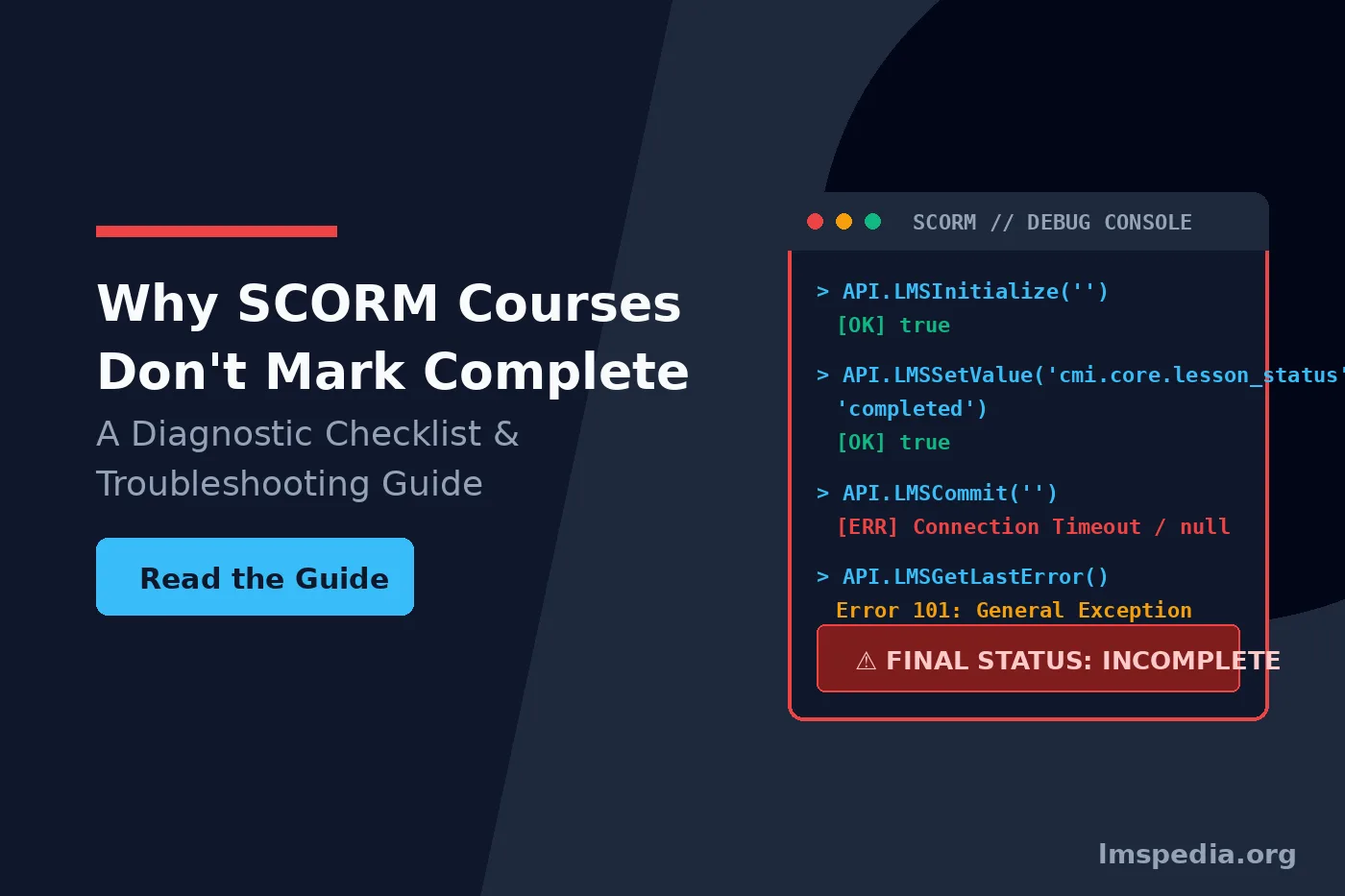
Every successful digital learning session relies on four specific technical commands. First, the course fires the Initialize command when the learner opens the window. This tells the server to prepare to receive incoming data. Second, the course fires multiple SetValue commands throughout the session. These specific commands update the user score, the bookmarking location, and the current progress status natively. Third, the course fires the Commit command. This forces the server to save the SetValue data permanently to the database. Finally, the course fires the Terminate command when the learner exits the module perfectly.
The Disconnected Communication Loop
The most common catalyst for a scorm not marking complete disaster occurs when the connection between the browser and the server drops silently. The learner might continue clicking through the remaining slides flawlessly. The course continues attempting to fire SetValue commands. However, because the internet connection dropped momentarily, the server never receives those commands. When the learner eventually closes the window, the system only remembers their progress up to the exact moment the connection failed. This creates massive discrepancies between what the learner experienced and what the database actually recorded.
Diagnosing a SCORM Not Marking Complete Error
Human behavior causes a massive percentage of technical tracking failures. The communication between the course and the server takes a fraction of a second. However, modern learners frequently move faster than the corporate network can process.
Closing the Window Too Fast
Imagine a learner reaches the final slide of a mandatory safety course. The authoring tool contains a trigger designed to send the final completed SetValue command when the timeline of that specific final slide ends. However, the learner sees the word “Congratulations” on the screen and immediately clicks the red X to close their browser window. They close the window before the slide timeline actually finishes. Consequently, the authoring tool dies before it can transmit the final completion command to the server. The learner remains permanently trapped in an incomplete status.
Implementing the Explicit Exit Button
If you want to prevent a scorm not marking complete scenario, you must engineer your courses to prevent this specific human behavior completely. Never rely on the learner to simply close the browser window organically. Instead, build a highly visible, mandatory exit button directly on the final slide of your course. Configure this specific button to execute the SetValue completion command, execute the Commit command, and then close the window automatically in that exact strict order. This forces the data to save perfectly before the browser window disappears.
Move the Completion Trigger Upstream
To eliminate premature exit errors entirely, you should move your completion trigger off the final summary slide. Place the trigger on the slide immediately preceding the final slide. This guarantees the system registers the completion status long before the learner ever considers closing their active browser window.
Resolving Conflicting Authoring Tool Settings
Authoring tools like Articulate Storyline and Adobe Captivate offer massive flexibility. However, this flexibility allows instructional designers to configure highly conflicting reporting rules easily. These internal conflicts cause catastrophic failures when the course attempts to communicate with the host platform natively.
The Passed/Incomplete Trap
Many novice developers select the Passed/Incomplete reporting option within their authoring tool. This specific setting forces the course to ignore physical slide views entirely. It only reports a completed status if the learner achieves a passing score on a final quiz. If your course does not actually contain a final graded quiz, the course will never send a passed status. When developers use the Passed/Incomplete setting without a quiz, a scorm not marking complete error is mathematically guaranteed. You must align your reporting settings perfectly with your actual instructional content.
Targeting Specific Cognitive Verbs
When you build your reporting structure, you must consider what you are actually trying to measure. Are you measuring attendance or are you measuring deep comprehension? To define these measurement goals accurately, you must use precise psychological frameworks. Review our detailed guide on selecting blooms taxonomy training verbs thoroughly. If your objective requires the learner to simply state a fact, a slide view completion trigger works perfectly. If your objective requires the learner to calculate a formula, you must use a strict quiz based completion trigger natively.
Essential SCORM Troubleshooting Procedures
When you encounter a widespread tracking failure across your entire workforce, you must isolate the root cause systematically. Professional platform administrators rely on a highly specific sequence of diagnostic steps to resolve a scorm not marking complete failure daily.
Step 1: Replicate the Error
You must attempt to replicate the exact failure using a fresh test account. Do not use an administrator account. Administrator accounts frequently bypass standard progression rules. Log in as a standard user, take the course exactly as the employee described, and monitor the final result. If the course completes perfectly for you, the issue likely stems from the employee’s specific local internet connection or their highly restrictive browser cache settings.
Step 2: Enable LMS Debug Logging
If the error replicates consistently, you must look directly at the raw data. Almost all modern platforms feature a hidden diagnostic debug log. This log records every single line of communication between the course file and the server natively. Enable this log and launch the course again. Scroll to the absolute bottom of the log file after you exit the module. Look specifically for the final SetValue command relating to the lesson status. If the log shows that the course sent an incomplete status, your authoring tool settings are fundamentally wrong. If the log shows that the course sent a completed status but the dashboard still says incomplete, your host platform is broken.
Step 3: The SCORM Cloud Isolation Test
Testing your content outside of your primary system is mandatory. SCORM Cloud by Rustici Software serves as the absolute gold standard for diagnostic testing in the corporate e-learning industry. It is a completely neutral, perfectly compliant testing engine. If you suspect your host platform is causing the lms completion not recording error, you must upload your zip file directly to SCORM Cloud. Take the course within this neutral environment. If the course marks complete in SCORM Cloud but fails in your primary system, you have definitive mathematical proof that your primary system contains a severe software bug. You can then submit this specific diagnostic proof directly to your vendor support team for immediate escalation.
| Observed Technical Symptom | Most Likely Root Cause | Recommended Diagnostic Action |
|---|---|---|
| User finishes but remains “Incomplete”. | Premature browser exit by the user. | Move the specific completion trigger one slide earlier. |
| Course never triggers a “Passed” status. | Reporting set to Passed/Incomplete without a quiz. | Change reporting setting to Completed/Incomplete natively. |
| Course fails for one user but works for everyone else. | Corrupted local browser cache or dropped Wi-Fi. | Clear the browser cache and force a new course attempt. |
| Course fails for all users on your LMS and SCORM Cloud. | Broken internal trigger within the authoring file. | Audit the Storyline or Captivate project file variables completely. |
| Course fails on your LMS but works perfectly in SCORM Cloud. | LMS server configuration or database mapping error. | Export the SCORM Cloud debug log and email your LMS vendor. |
Check the Suspend Data Limits
Older standards restrict the suspend data limit to exactly 4,096 characters. If your course contains massive amounts of interactive variables, it might exceed this highly restrictive character limit natively. When the limit maxes out, the course simply stops recording all subsequent progress completely, leading to permanent incomplete statuses.
Conclusion
Resolving a scorm not marking complete error requires patience, strict logic, and a deep understanding of the underlying data architecture natively. You must stop guessing and start utilizing proper scorm troubleshooting methodologies immediately. By monitoring the raw debug logs, you can determine exactly why a course stuck in progress fails to communicate with the server. Furthermore, by utilizing neutral testing environments like SCORM Cloud, you isolate whether the lms completion not recording error stems from a broken authoring file or a catastrophic host platform failure. Master these diagnostic steps perfectly to eliminate administrative waste, reduce learner frustration, and ensure your corporate compliance tracking remains completely accurate at all times.
FAQ
Q1. Why is my SCORM course not marking complete in the LMS?
The most common reason is that the learner closed the browser window too quickly before the course could transmit the final completion signal to the server. Other frequent causes include conflicting authoring tool reporting settings or momentary drops in the user’s internet connection during the session.
Q2. How do I test if my SCORM file is actually broken?
You should upload your exported zip package directly to SCORM Cloud, which is a free, neutral testing standard. If the course tracks perfectly in SCORM Cloud but fails in your own system, your LMS is the root cause. If it fails in SCORM Cloud, your course file is built incorrectly.
Q3. What is the difference between Passed/Incomplete and Completed/Incomplete?
Passed/Incomplete relies entirely on a final quiz score to determine the final status; it ignores how many slides the user viewed. Completed/Incomplete relies entirely on the user viewing a required number of slides; it ignores the final quiz score completely.
Q4. How can I prevent learners from closing the window too early?
You should disable the native browser exit buttons if possible and force learners to use a highly visible, built-in “Exit Course” button on the final slide. You can configure this specific button to save all data to the database explicitly before closing the window.