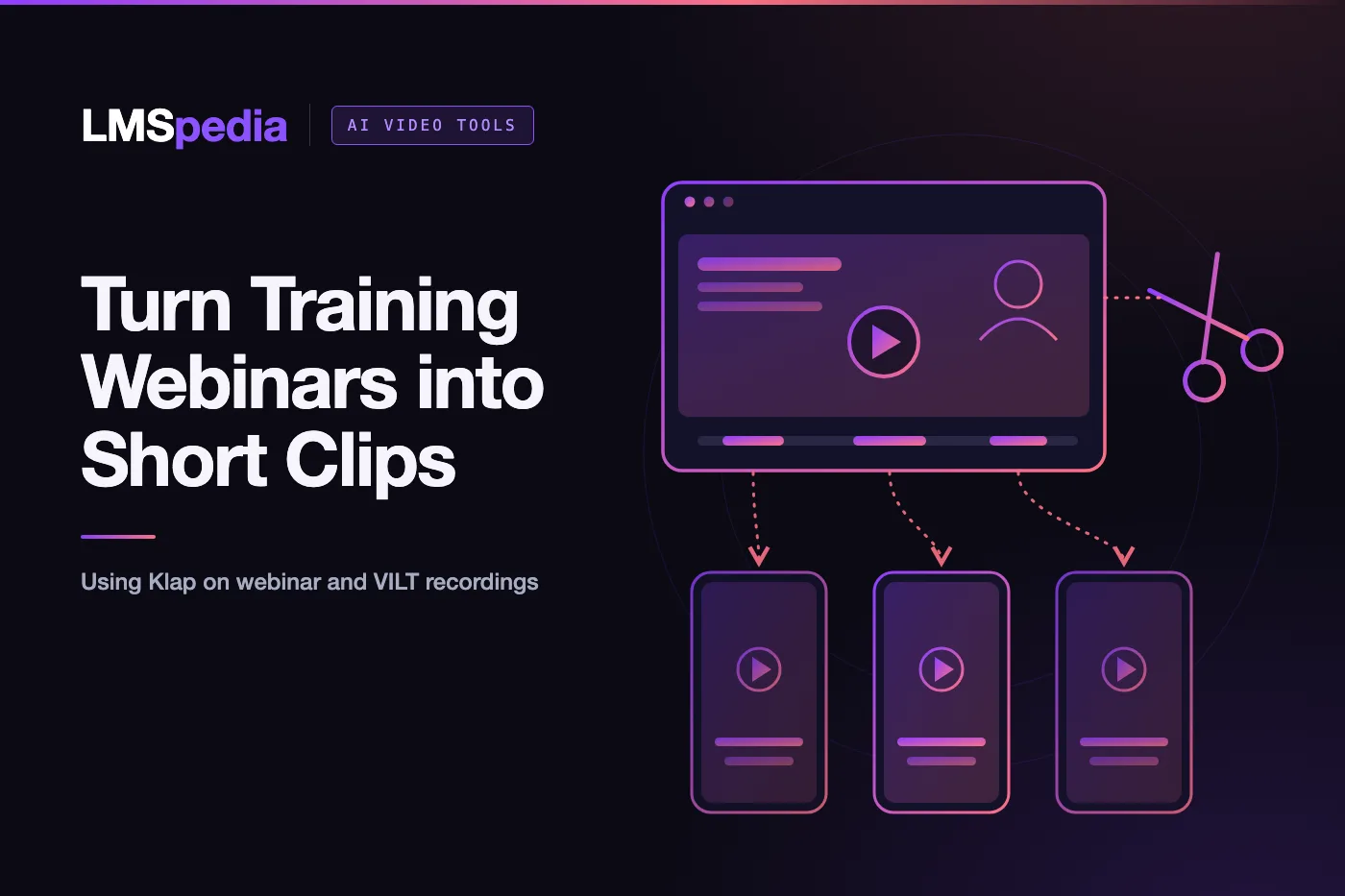
To turn a training webinar, VILT recording or internal session into short clips, upload the recording to an AI clipping tool such as Klap. It finds the self-contained moments, reframes them for vertical screens and adds captions. Your team then reviews each clip and decides where it goes: LinkedIn, the LMS, an internal channel or a course page.
Most L&D teams record far more than anyone rewatches. A one-hour webinar, a three-day VILT program and a monthly all-hands each leave behind hours of video that sit in a shared drive. Inside those recordings are the moments learners actually remember: a clear explanation, a useful framework, a good answer to a common question. Short clips put those moments back in front of people.
Which training recordings make good clips?
Not every recording is worth clipping. Klap’s clipping is driven by speech, so the best sources are sessions where someone explains things out loud.
- Public webinars: the easiest place to start. They are already public, the content is polished, and clips can promote the next session.
- VILT recordings: facilitator explanations, demos and recap segments work well. Breakout rooms, silent exercises and long Q&A stretches usually don’t.
- Internal sessions: subject matter expert talks, leadership updates and onboarding sessions can become short refreshers for employees.
Good clip moments tend to be self-contained: a definition, a three-step framework, a short story or an answer that makes sense without the rest of the session.
Before you upload: permissions and privacy
Training recordings often include participants, not just presenters. Before you clip a VILT session or an internal meeting, check three things.
- Consent: participants agreed to be recorded for training, which is not always the same as appearing in a public clip. Keep public clips to the facilitator unless you have permission.
- Confidential content: internal numbers, customer names and unreleased products should never reach a public clip.
- Tool approval: check Klap’s privacy terms against your company’s policy before uploading internal sessions to any cloud tool.
How to turn a VILT or webinar recording into clips with Klap
- Export the recording. Download the session from your webinar or virtual classroom platform as a video file, then upload it to Klap. If the session is on YouTube, paste the link instead. Klap’s comparison pages say source videos can run up to three hours, which covers most sessions.
- Let Klap find the moments. Klap cuts the recording into separate clips by topic and gives each a virality score. For training content, use the score to sort clips, then judge each one on whether it teaches something on its own.
- Fix the layout. Virtual classroom recordings mix slides, screen shares and presenter video. Klap’s screencast layout keeps the slide and the speaker visible in a vertical frame, and split screen suits a facilitator talking with a guest.
- Trim from the transcript. Each clip’s transcript sits next to the preview, so cutting a tangent or a participant’s question works much like deleting text.
- Check the captions. Training sessions are full of acronyms, product names and internal jargon. Read every caption before export, then apply your brand fonts, colors and logo.
- Publish or export. Schedule public clips straight to LinkedIn, YouTube, Instagram or TikTok, or export the file for your LMS or intranet. Exports on paid plans carry no Klap branding.
Where training clips work best
| Recording | Clip idea | Where it goes |
|---|---|---|
| Public webinar | The strongest insight from the session | LinkedIn, to drive sign-ups for the next one |
| VILT program | Facilitator recap of a key concept | LMS, as a microlearning refresher after the course |
| Course lessons | 30 to 60 second teasers | Course catalog page or launch email |
| SME or leadership talk | One idea, under a minute | Slack, Teams or the intranet |
| Onboarding session | Answers to common new-hire questions | Onboarding path in the LMS |
Klap is built for social clips, but the exported files are ordinary videos, so they can go into an LMS like any other microlearning asset. Klap also captions in 52 languages, which helps teams that train a global workforce.
What Klap costs for a training team
Klap counts the clips it generates each month. Prices are as of November 2026, from Klap’s pricing page.
| Plan | Monthly billing | Yearly billing (per month) | Clips per month |
|---|---|---|---|
| Basic | $29 | $14 | 100 |
| Pro | $79 | $39 | 300 |
| Pro+ | $189 | $94 | 1,000 |
A team clipping a few webinars a month can usually start on Basic. Teams clipping whole VILT programs or a course library will reach the cap faster. The free trial covers one video with no credit card, but downloading and posting need a paid plan, so test with a recording you would actually publish.
Klap vs Opus Clip vs Vizard for training recordings
All three tools clip long videos. For training content, the useful differences are layout handling, languages and how usage is counted on hour-long recordings. Details come from each tool’s own pricing page as of November 2026.
| Klap | Opus Clip | Vizard | |
|---|---|---|---|
| Plan at $29/month (monthly billing) | Basic: 100 clips | Pro: 300 credits | Check current pricing |
| How usage is counted | Clips generated | Monthly credits | 1 credit = 1 minute uploaded |
| Free option | 1 video; no download or posting | 60 credits/month, watermark | 60 credits/month, 720p export |
| Languages | 52 | Captions in 20+ | See Vizard’s site |
Because Opus Clip and Vizard count the minutes you upload, a full-day VILT recording can use up credits quickly, while Klap’s limit depends on how many clips you generate. In hands-on tests published by Autoposting.ai in May 2026, Klap produced fewer but cleaner clips, while Opus Clip produced more clips that needed more trimming. The fairest test is to run one of your own training recordings through each tool.
Tips for getting the best clips from training recordings
- Choose facilitator segments: reframing works best with one or two people on screen, so presenter and screen-share segments make cleaner clips than gallery views with many participants.
- Pick sessions with narration: Klap’s clipping is driven by speech, so demos the presenter explains out loud clip better than silent walkthroughs.
- Review before you publish: give each clip a quick check for caption placement, jargon and context, as you would any training asset.
- Test with a real session: the free trial covers one video, so use a recording you would actually publish.
- Pair it with your LMS: Klap creates the clips, while SCORM packages, quizzes and learning paths stay in your authoring tool and LMS.
The bottom line
Your webinars, VILT programs and internal sessions already contain the explanations learners need. They are just buried in hour-long recordings. Pick one recent session, run it through the free trial, and count how many clips you would actually share with learners or post publicly. Try Klap free with your next training recording.
FAQ
Q1. Can I turn a VILT recording into short clips?
Yes. Export the session from your virtual classroom platform as a video file and upload it to Klap, which cuts it into short captioned clips. Clips built around the facilitator work better than gallery-view segments with many participants.
Q2. Can I use Klap clips in my LMS?
Yes. Klap exports standard video files, so you can upload them to an LMS as microlearning assets. Klap does not create SCORM packages, so use your authoring tool if you need tracking beyond video views.
Q3. Is it safe to clip internal training sessions?
That depends on your company’s policy and the content of the session. Check Klap’s privacy terms with your IT or legal team, get consent from people who appear on camera, and keep confidential material out of any public clip.
Q4. Which is better for training webinars: Klap or Opus Clip?
Both cost $29 a month on comparable plans with monthly billing. Klap counts clips and supports 52 languages, while Opus Clip counts credits and has a permanent free tier. Running one of your own webinars through both is the quickest way to decide.
Q5. Can Klap post training clips to LinkedIn?
Yes. Klap can publish or schedule clips to LinkedIn, YouTube, Instagram and TikTok, which suits promoting webinars and courses to B2B audiences.